

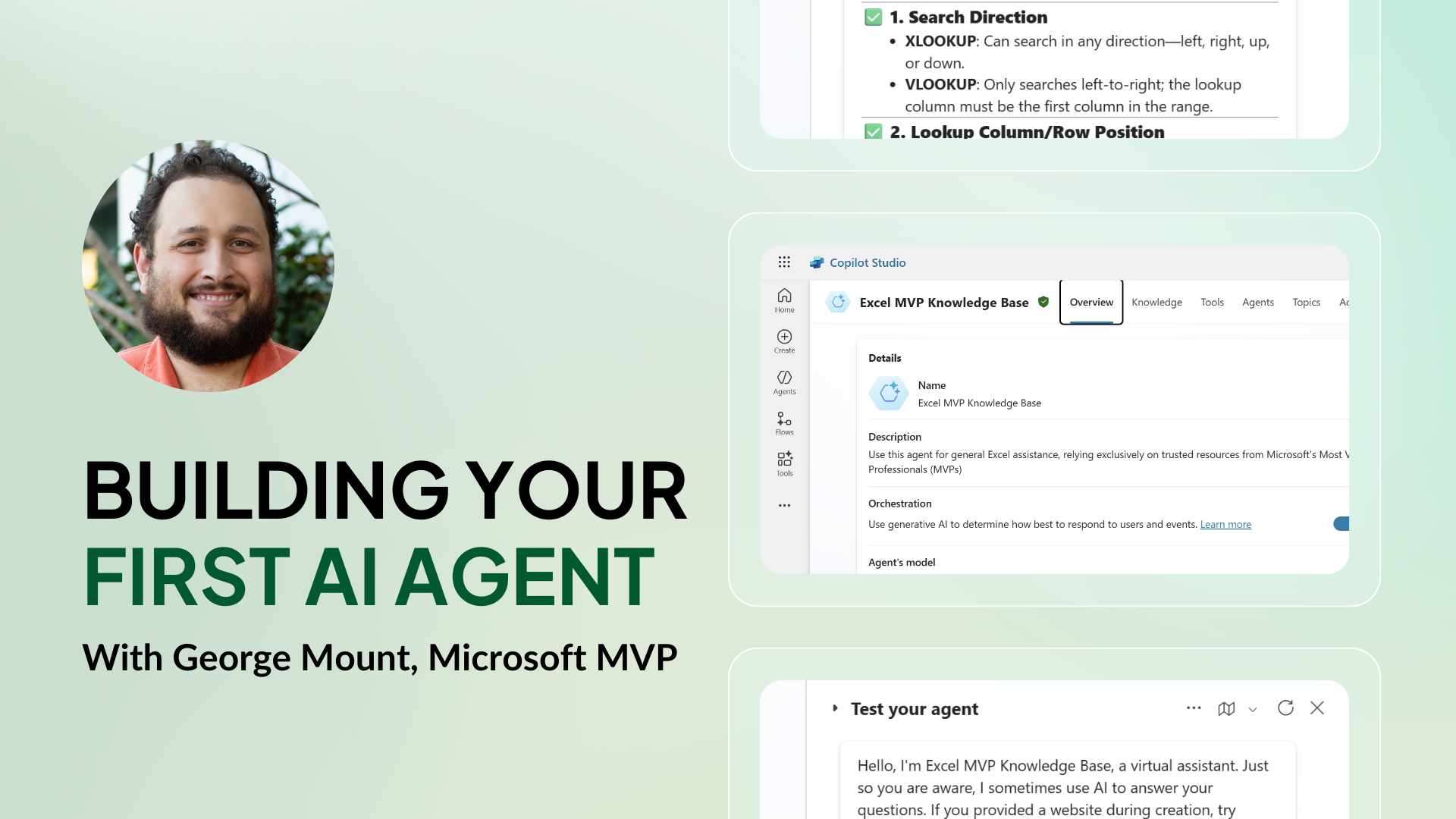
In this webinar, George Mount introduces Excel users to the concept of AI agents and shows how familiar spreadsheet structures can be used to design, test, and supervise them. Rather than positioning AI as something that replaces Excel, this session demonstrates how Excel becomes more powerful when paired with modern AI workflows.
(This webinar originally aired on 20 November 2025 as part of the Global Excel Summit education series.)
Watch the Webinar
- 00:00:45 Introducing AI Agents in Excel
- 00:05:05 What Is an AI Agent (and What It Isn’t)
- 00:11:00 Copilot vs Prompts vs Agents
- 00:18:10 A Simple AI Agent Pattern in Excel
- 00:27:30 Practical Business Use Cases
- 00:36:40 Common Mistakes to Avoid
- 00:43:05 Scaling Beyond a Single Workbook
What You’ll Learn
- What an AI agent actually is, in practical terms
- Why Excel is well suited to working with AI agents
- How agents differ from prompts and copilots
- A repeatable pattern for building simple AI agents in Excel
- Where Excel-based AI agents deliver real business value
- Common pitfalls when getting started
Introducing AI Agents in Excel
George begins the session by reframing the way many Excel users think about AI. Rather than focusing on individual AI-powered features, he encourages attendees to think in terms of systems that take inputs, make decisions, and produce outputs over time.
Excel already excels at this kind of work. It’s used every day to manage processes, models, and decisions, which makes it a natural environment for experimenting with AI agents.
The key shift is not learning a brand-new toolset, but rethinking how existing Excel structures can coordinate AI-driven actions.
What Is an AI Agent (and What It Isn’t)
One of the most valuable parts of the webinar is George’s clear explanation of what an AI agent actually is.
An AI agent is not:
- A single prompt
- A chatbot window
- A fully autonomous system that replaces human judgement
Instead, an AI agent can be thought of as a loop:
- Receive a task or goal
- Evaluate what to do next
- Use tools or models to take action
- Return results
- Decide whether to continue, adjust, or stop
Excel’s grid-based design makes each step in that loop visible and auditable. Tasks can be defined in rows, context stored in tables, and outputs reviewed before any further action is taken.
This visibility is critical in business settings, where blind automation is often a liability rather than an advantage.
What is the difference between Copilot, Prompts and Agents in Excel
George spends time clarifying terminology that often gets confused:
- Prompts are single instructions with a response
- Copilots assist users interactively within an application
- Agents operate across multiple steps toward a goal
In Excel terms:
- A prompt might live in one cell
- A copilot helps you write or analyse something in the moment
- An agent often spans multiple cells, tables, and iterations
Understanding this distinction helps users avoid over engineering early experiments. Many successful AI agents start as simple prompt-driven workflows before evolving into more structured systems.
Why Excel Works So Well for AI Agents
A recurring theme throughout the session is that Excel already provides many of the components AI agents need:
- Structured inputs - Tables, parameters, and clearly defined data ranges
- Repeatable logic - Formulas, Power Query steps, Office Scripts
- Human oversight - Review, validation, and adjustment at each step
- Integration points - APIs, Power Platform, and external services
Rather than competing with AI, Excel acts as the orchestration layer - it is the place where we define goals, monitor behaviour, and decide what happens next.
A Simple AI Agent Pattern in Excel
While the webinar avoids prescribing a single “correct” implementation, George outlines a simple, repeatable pattern that works well in Excel.
1. Define the Task
What is the agent trying to achieve? This could be:
- Categorising text
- Reviewing data
- Generating summaries
- Flagging anomalies
Clear goals lead to far better outcomes.
2. Provide Structured Context
Context matters. Excel tables are ideal for supplying:
- Rules
- Constraints
- Examples
- Reference data
This structure dramatically improves consistency and reliability.
3. Call the Model or Tool
Using scripts, connectors, or integrations, Excel sends the task and context to the AI model.
At this stage, Excel acts as the conductor, not the performer.
4. Capture the Output
Results are written back into cells where they can be:
- Reviewed
- Compared
- Filtered
- Flagged
Nothing happens invisibly.
5. Decide the Next Action
Based on the output, the agent can:
- Stop
- Refine the task
- Escalate for human review
- Continue the loop
This decision step is what turns a static AI call into an agent.
Practical Business Use Cases
George highlights several scenarios where Excel-based AI agents make sense today:
- Reviewing and classifying large volumes of text
- Creating first-pass analyses that humans refine
- Supporting forecasting and planning workflows
- Assisting with decision preparation, not decision replacement
The emphasis is always on augmentation rather than automation. Excel keeps us in control while reducing repetitive cognitive work.
Common Mistakes to Avoid
The webinar also addresses mistakes commonly made by teams new to AI agents:
- Trying to make agents fully autonomous too early
- Using unstructured prompts
- Skipping validation and review steps
- Treating AI outputs as final answers
Excel’s strength lies in its transparency. Ignoring that advantage often leads to fragile or untrustworthy systems.
Scaling Beyond a Single Workbook
In the final section, George looks ahead to how these ideas scale across teams. Key considerations include:
- Governance and access control
- Shared templates and standards
- Clear ownership of agent behaviour
- Documentation and auditability
Excel remains valuable even as solutions grow, because it provides a shared language between technical and non-technical stakeholders.
How This Fits Into the Global Excel Summit
This webinar is a preview of the kind of forward-looking, practical sessions featured at the Global Excel Summit. Live sessions go deeper, include real-time Q&A, and explore how these concepts apply across real organisations.
- AI in Excel sessions - Discover how AI is shaping the Excel world and the ways you can take advantage of it.
- Full Global Excel Summit 2026 agenda - AI, automation, and advanced Excel workflows are covered in depth at the Global Excel Summit, alongside sessions from world-class Excel experts.
About the Speaker
George Mount is known for helping Excel users bridge traditional spreadsheet skills with modern data and AI workflows. His teaching focuses on practical, business-ready approaches rather than hype-driven experimentation.
Get AI Agent for Excel
You can learn more about AI Agent for Excel via the official Microsoft Marketplace. Get it now.

Latest Articles
.png)
Sheetcast - A Natural Evolution for People Who Love Excel
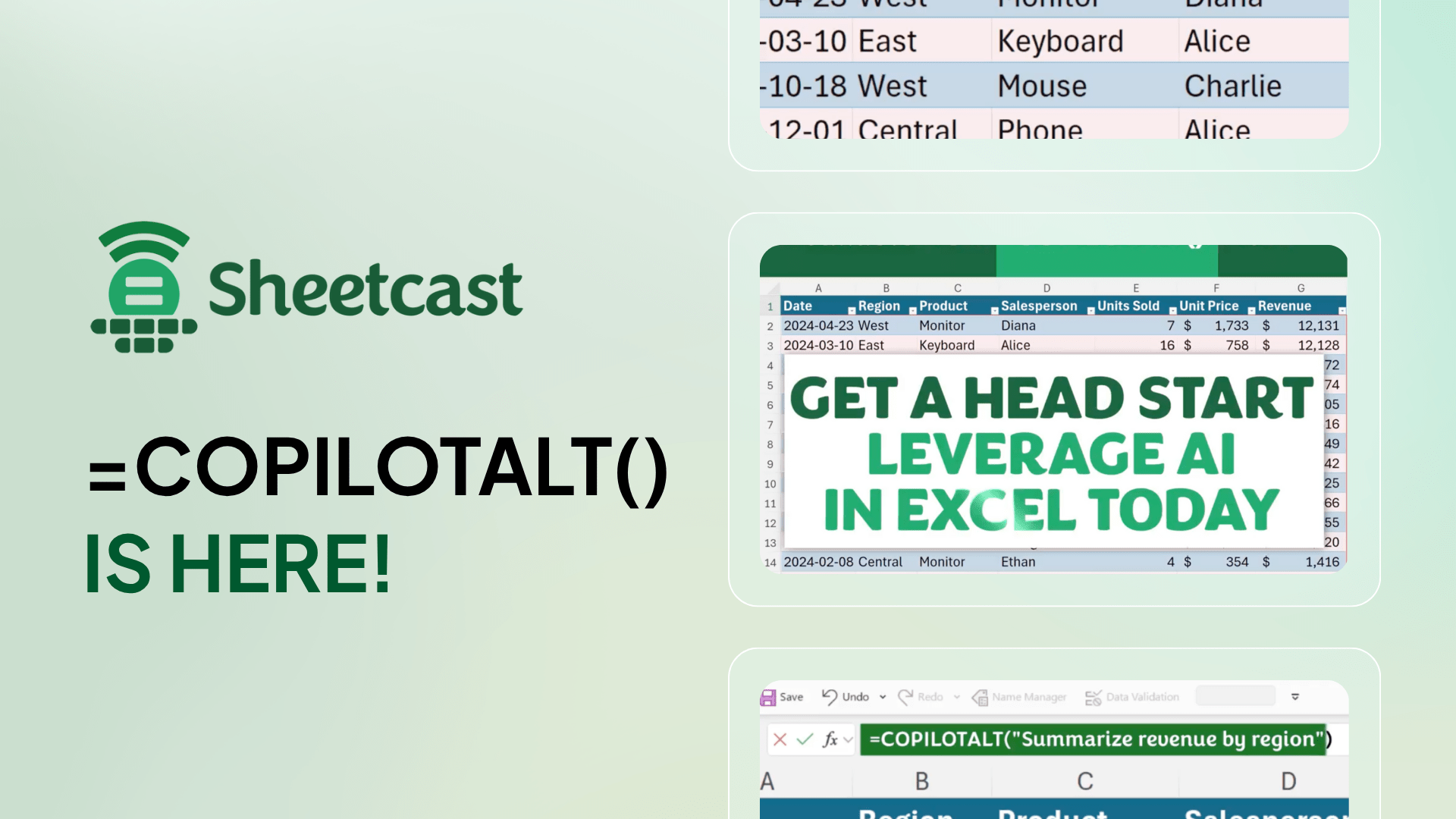
Leap into Excel’s AI revolution with COPILOTALT by Sheetcast
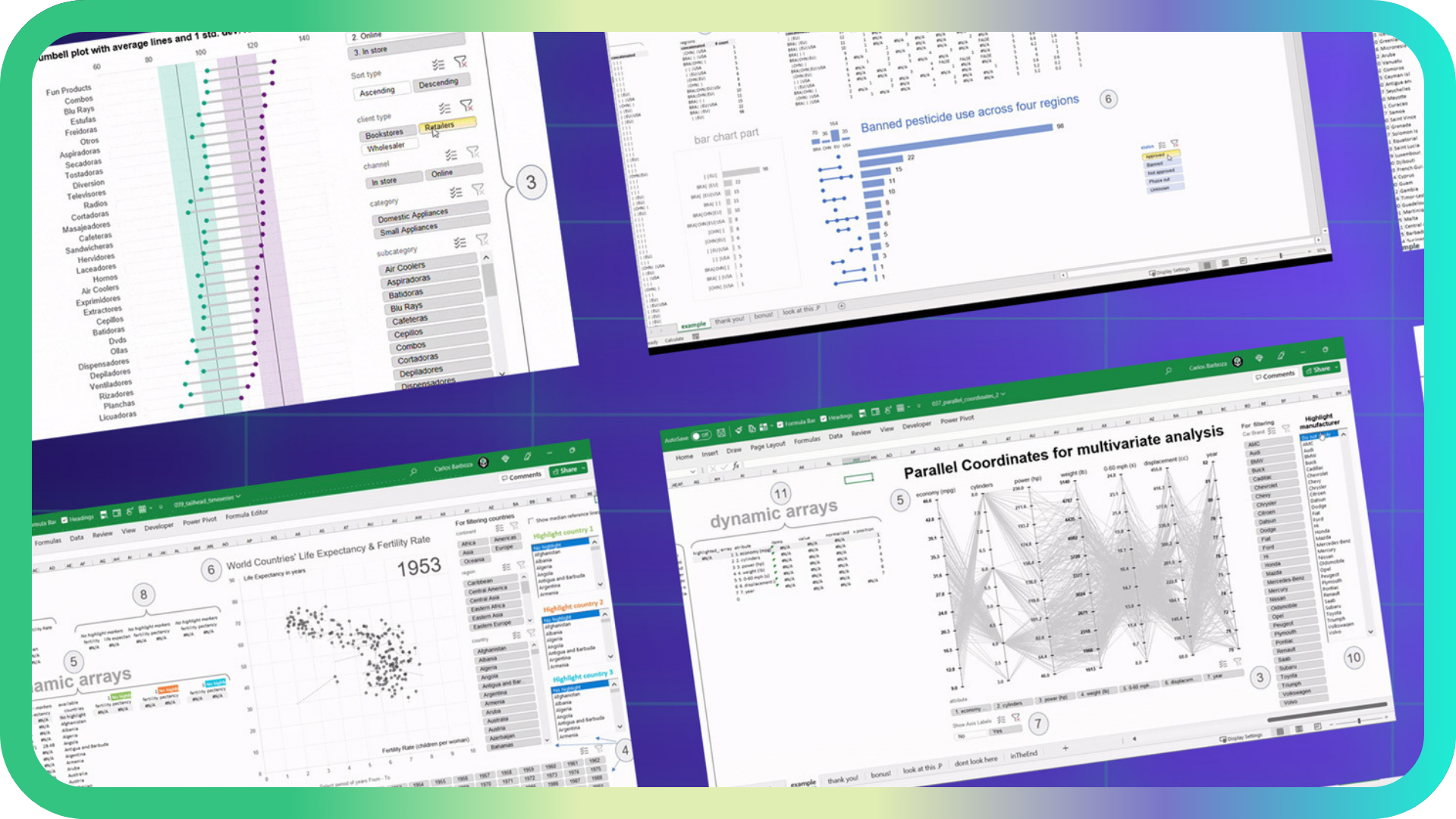
The art of storytelling in Excel
Join the Master Club
Your exclusive all-access pass to our entire digital learning experience for a whole year.
.png)